Home / Canteen and meals
School canteenSchool canteen: menu, meal bookings and payment by card
The kitchen publishes its menu, families book through the portal, and scanning the card in the canteen debits the pupil's wallet. The school knows before noon how many meals to prepare.
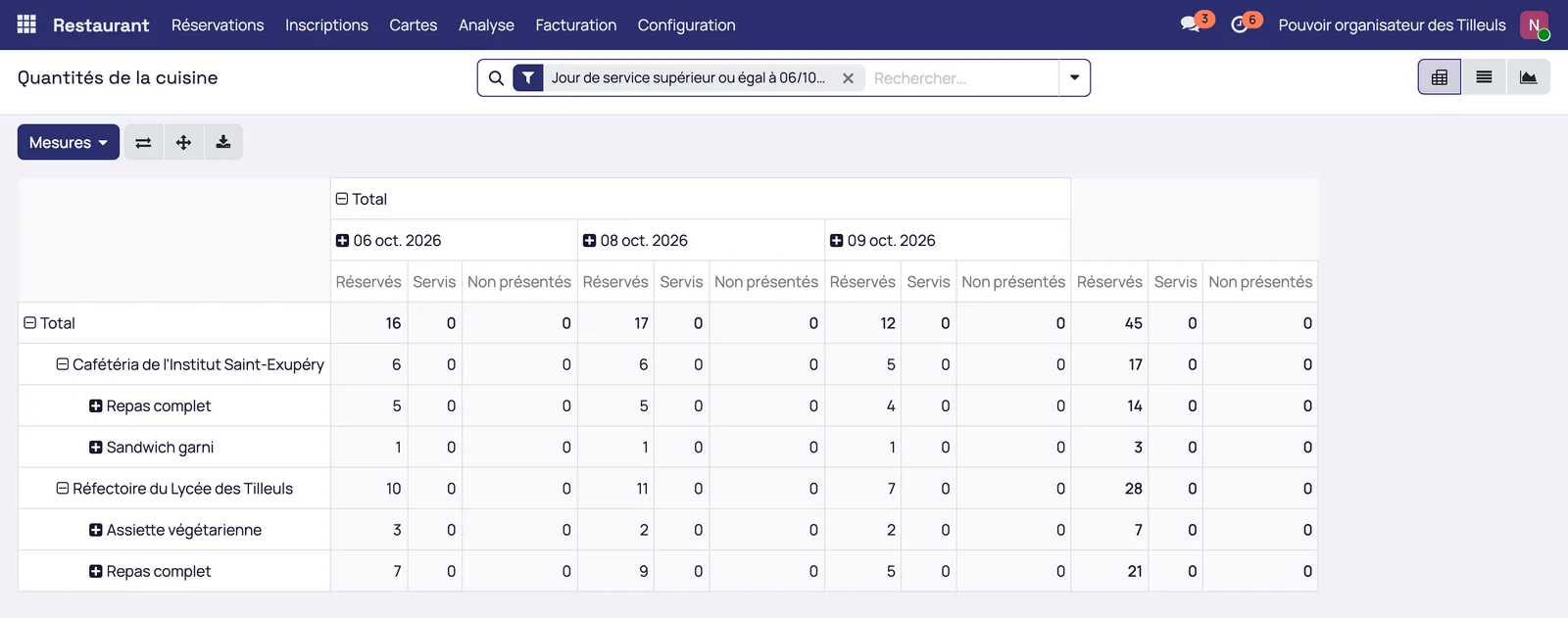
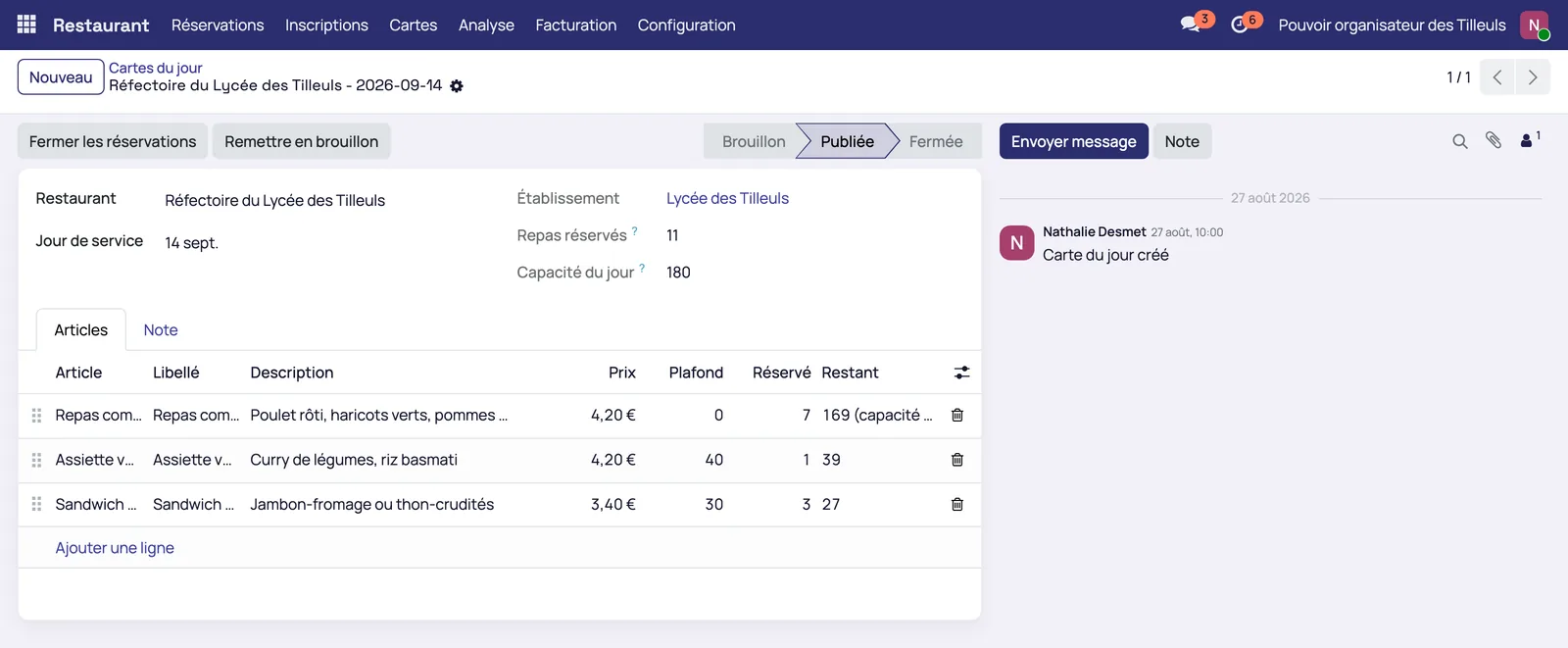
The kitchen keeps its menu and sets the booking deadline
The head cook publishes each day's dishes
Each canteen has its own menu: meal deals, dishes of the day, prices. The head cook keeps it up to date personally, without going through the bursar's office.
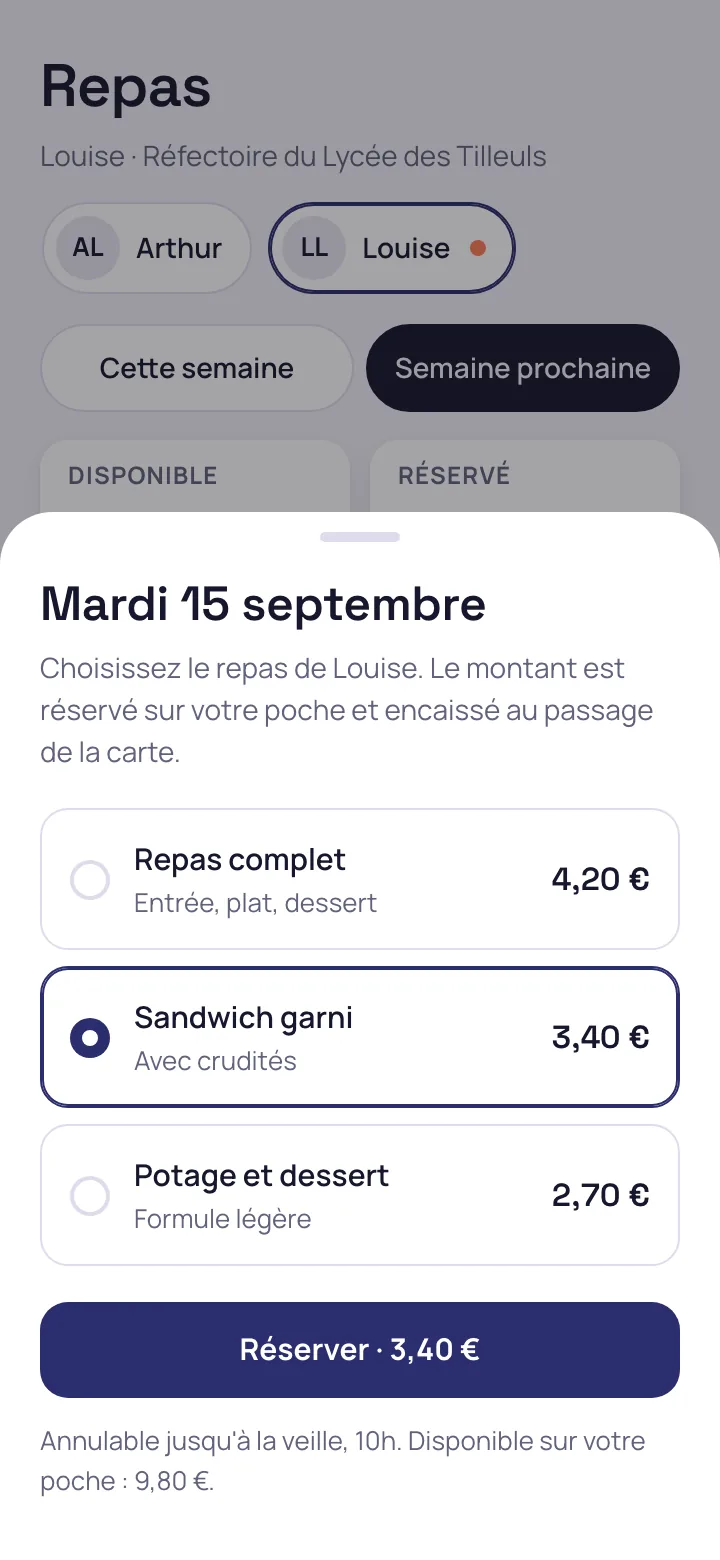
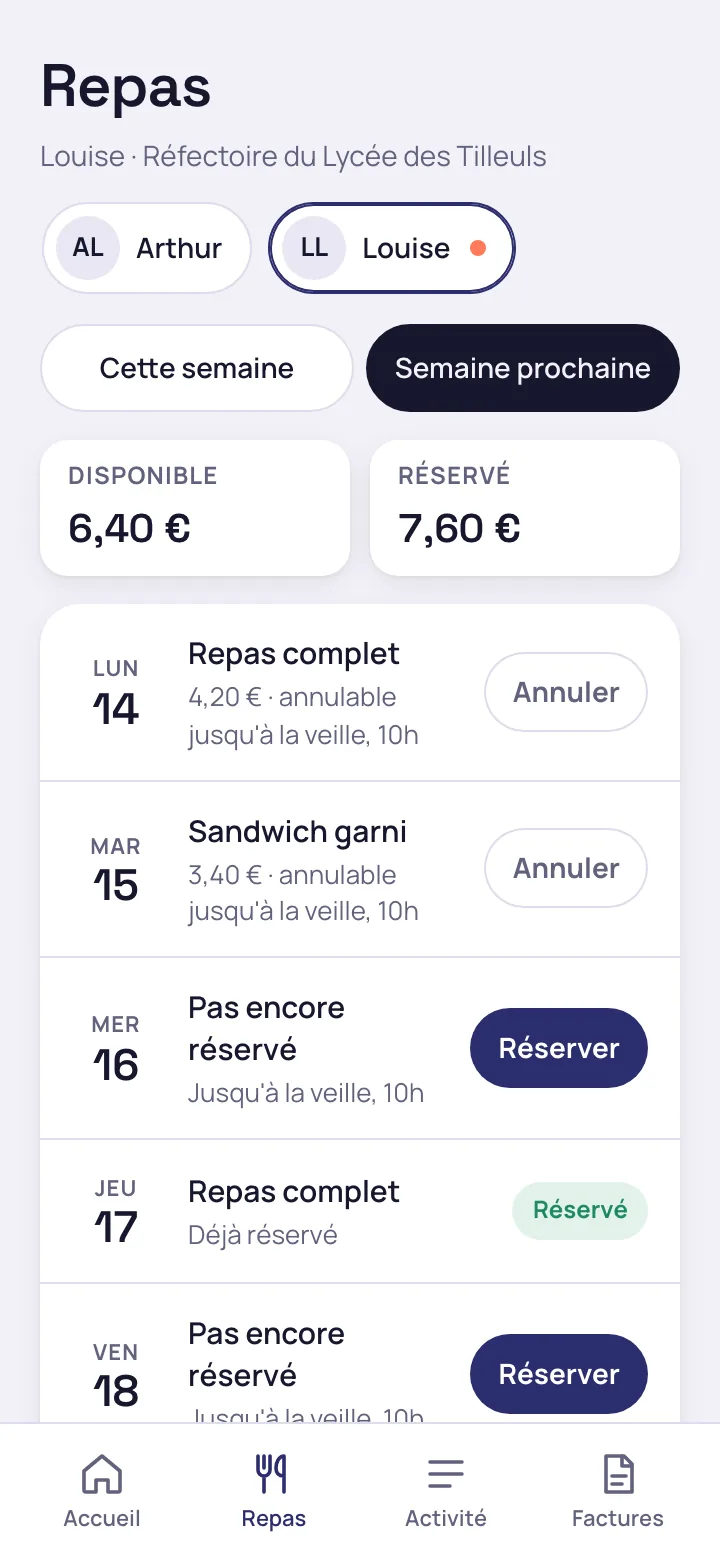
Families book until the deadline set by the school
From the portal, the parent chooses each day's meal deal for each child. The amount is reserved on their sub-wallet. The booking can still be changed or cancelled until the deadline the school has set, for example the evening before at 10 a.m.
The school office can book for a pupil
For a pupil without portal access, the school office enters the booking. The origin of each booking stays visible: school office or families app.
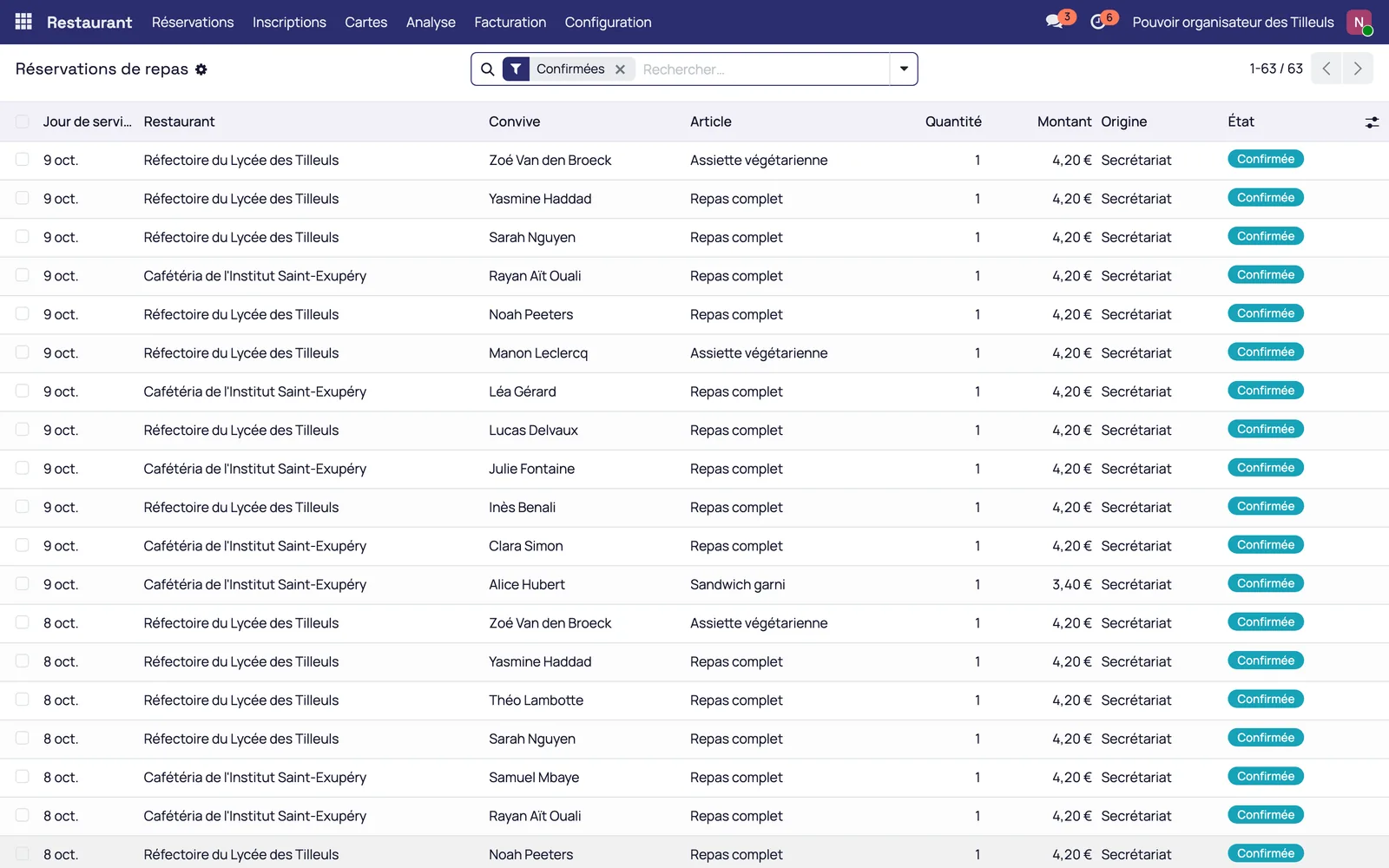
Enrol a class for the year and deregister a day before the deadline
The kitchen sets the deregistration deadline
The school sets the booking deadline and the cancellation deadline, for example 8 a.m. on the same day. A booking horizon, for example 14 days, sets how far ahead enrolments place their meals.
The school office enrols a class in one go
The school office chooses the canteen, the class, the meal, the days of the week and the school year. Each pupil is booked on the menus published for those days. A pupil with no paying parent, with two paying parents, or already enrolled is left aside and listed.
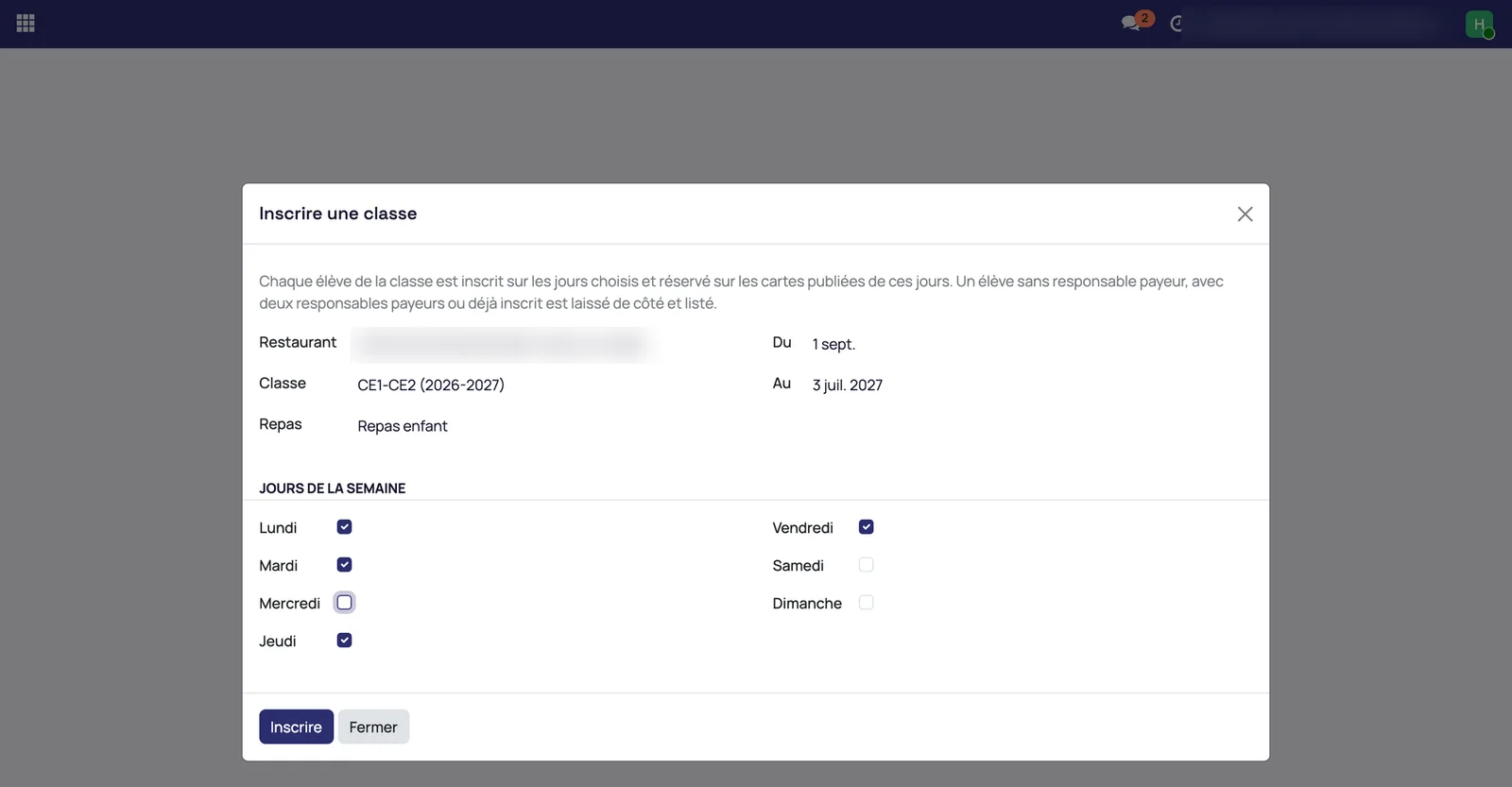
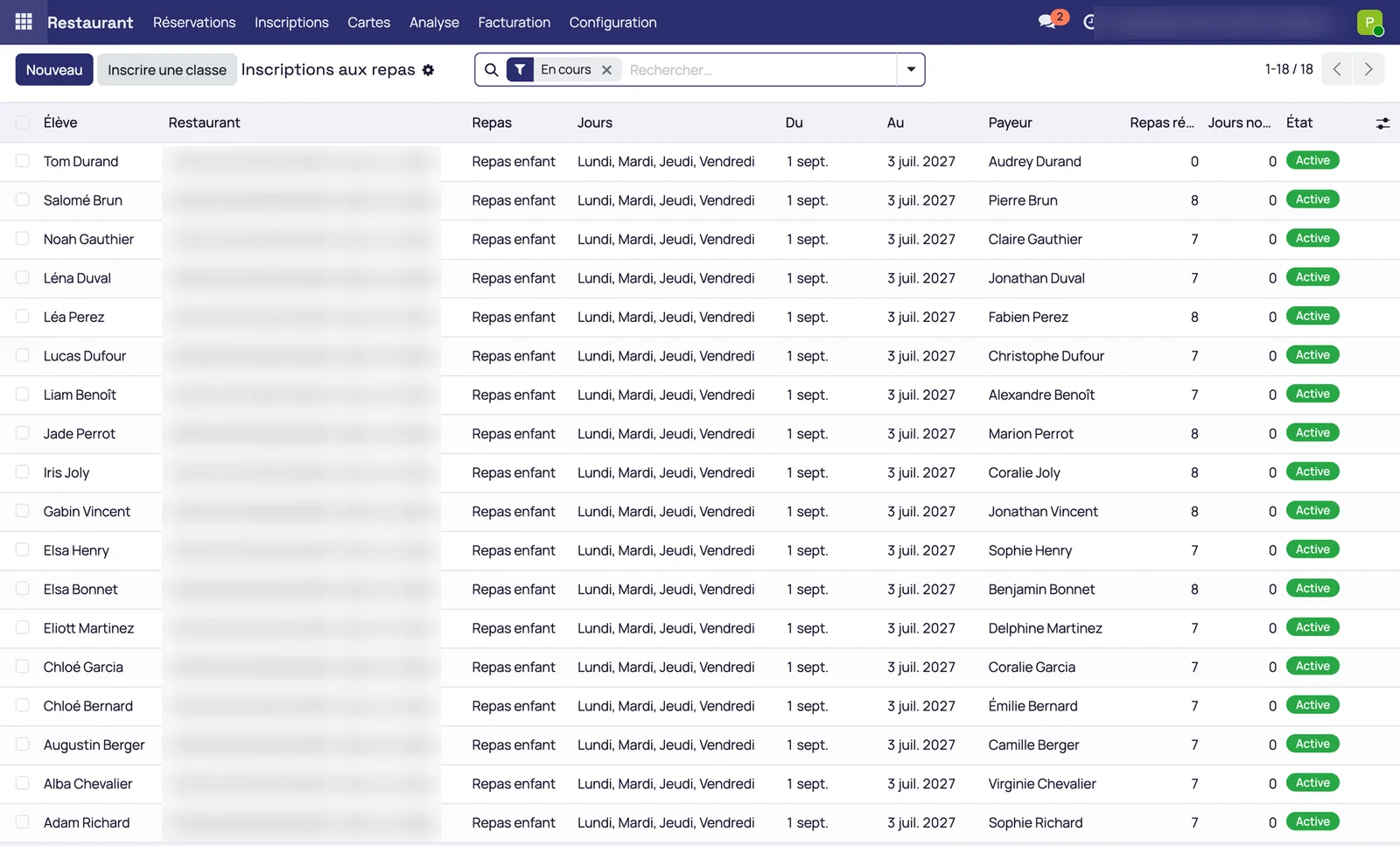
The enrolment list shows the meals booked and the days not booked
For each pupil, the list gives the days, the paying parent, the number of meals booked and the number of days not booked. The bookings generated are ordinary bookings: they appear in the day's list and in the kitchen's forecast.
- A one-off booking already made is never overwritten
- A deregistered day never comes back
- Closing days, with no menu published, generate no booking
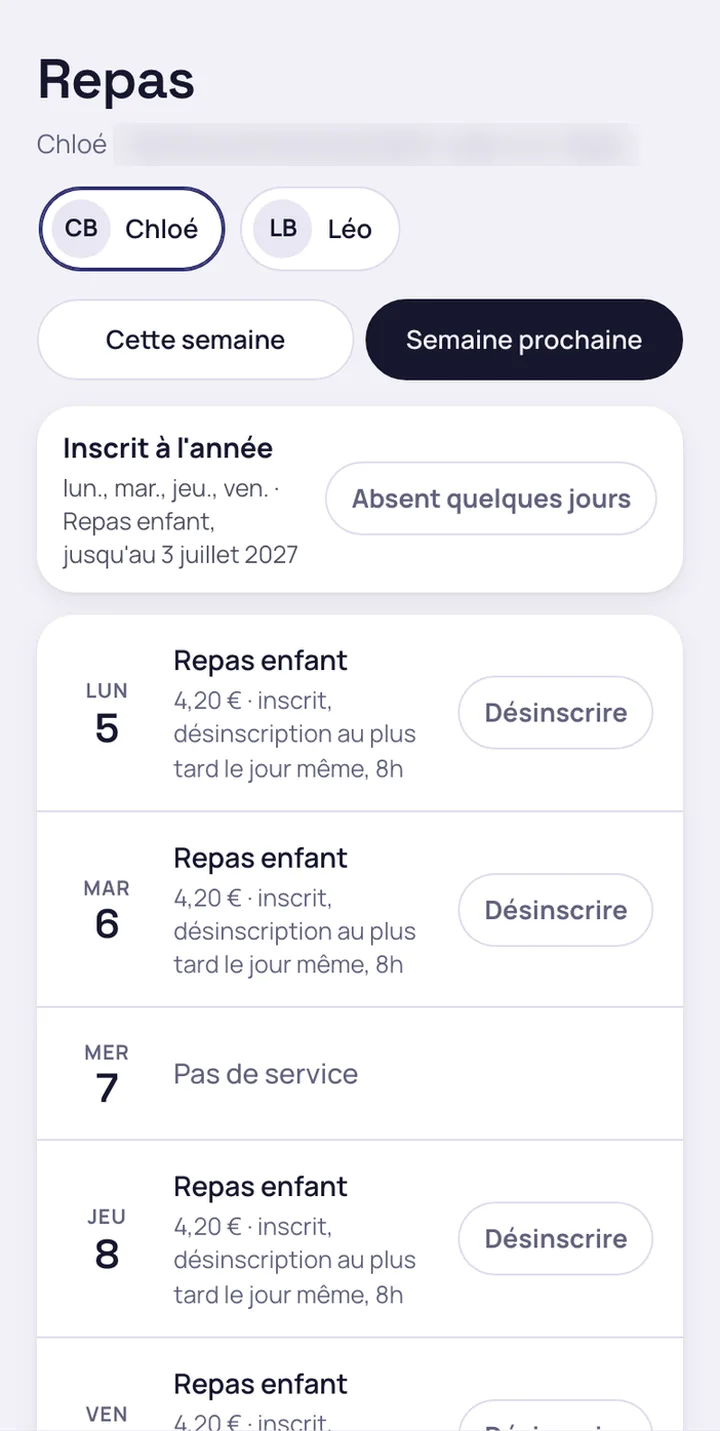
The family deregisters a day or a period from their phone
In the app, the child enrolled for the year sees their days with the Deregister button and the deadline. An absence of several days is declared in one go. A meal deregistered before the deadline is released; after that time it remains due.
- Separated parents: only the paying parent sees the enrolment, the other sees a booked day
- Shared custody: two enrolments on different days
The names, amounts and statements visible in these screenshots are fictitious demonstration data.
The monthly invoice groups the children of the same parent
The canteen moves to monthly invoicing, with no wallet to top up
A booking then commits no wallet: families book without topping up, and the bursar invoices in one go the meals due for the past month. Each child has a paying parent, set on their record. A meal cancelled within the deadline is not invoiced; a meal booked and not cancelled in time is due under the school's rule.
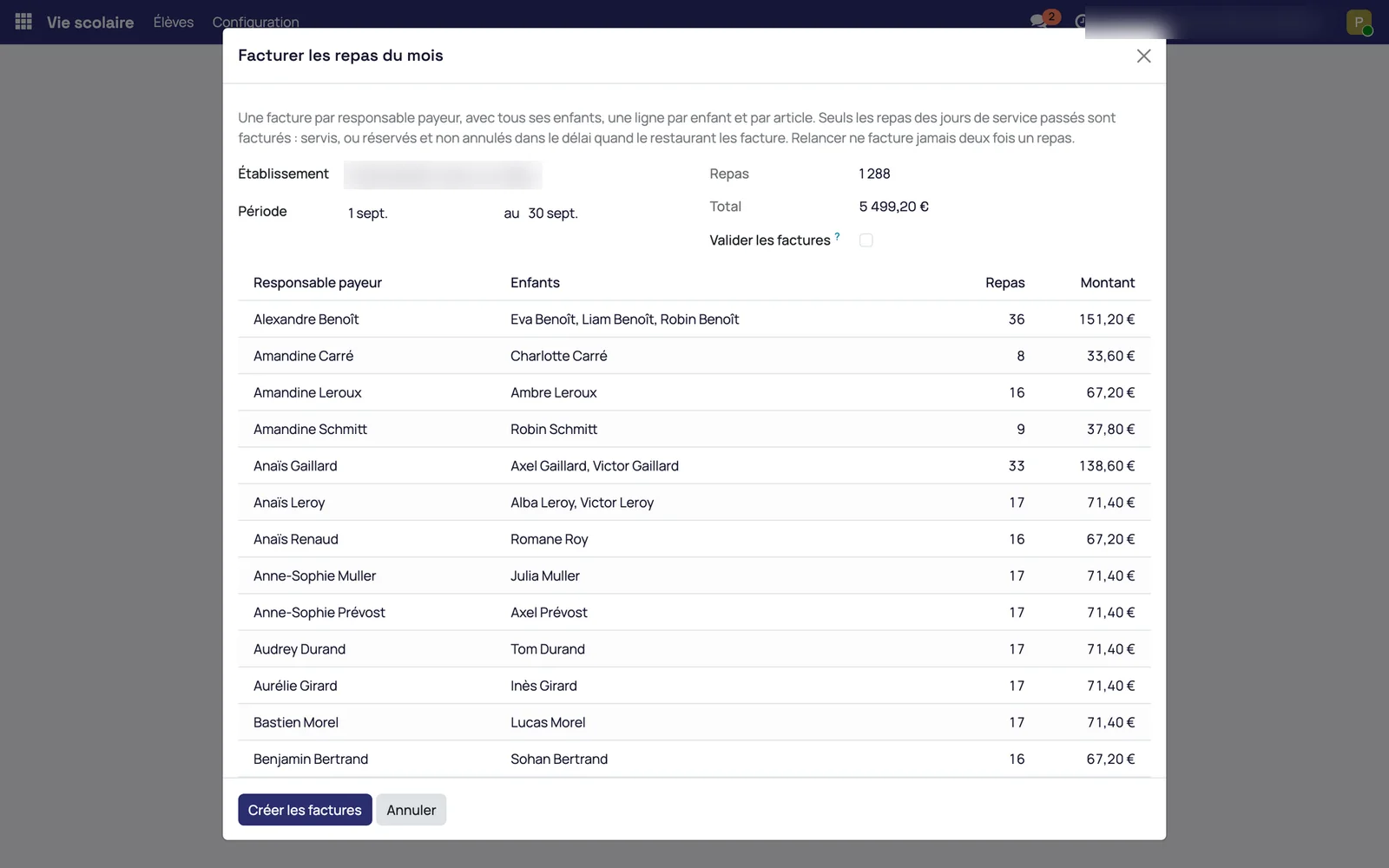
The assistant shows the month by parent before creating anything
On the first of the month, the Invoice the month's meals assistant lists, per paying parent, the children, the number of meals and the amount. The invoices are created as drafts, reviewed, then validated. Running it again never invoices a meal twice, and a meal checked later completes the draft.
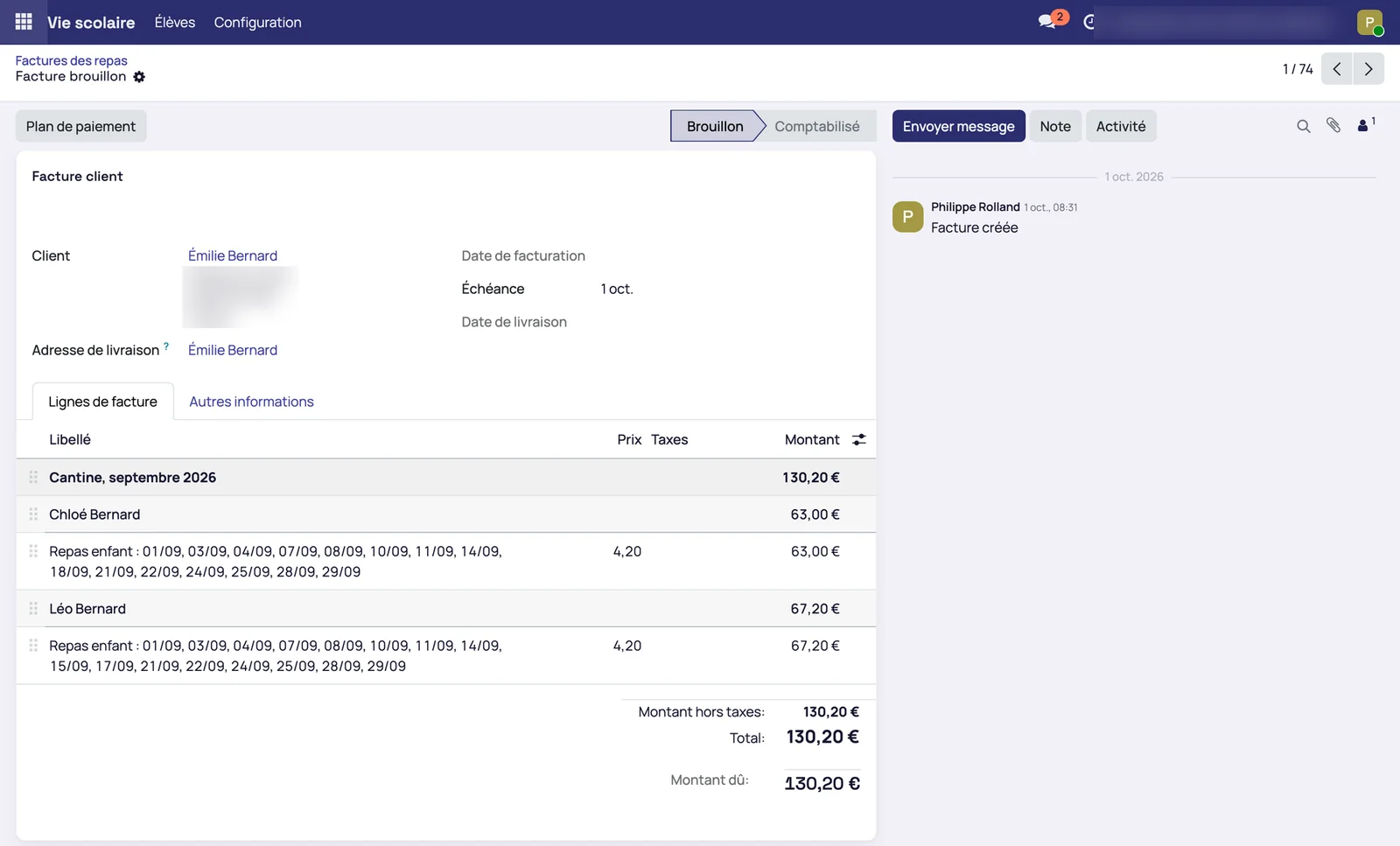
One invoice for the siblings, with one block per child
The invoice carries one section for the month, one block per child and the meal days listed. An invoice cancelled or refunded by credit note makes its meals invoiceable again. The family finds its invoice and statement in the app.
The families' standing orders pay the invoices
The treasurer imports the bank statement and each recognised transfer settles the family's invoices. The detail of the reconciliation is on the page administrative and accounting management.
The names, amounts and statements visible in these screenshots are fictitious demonstration data.
At the till, the card is enough
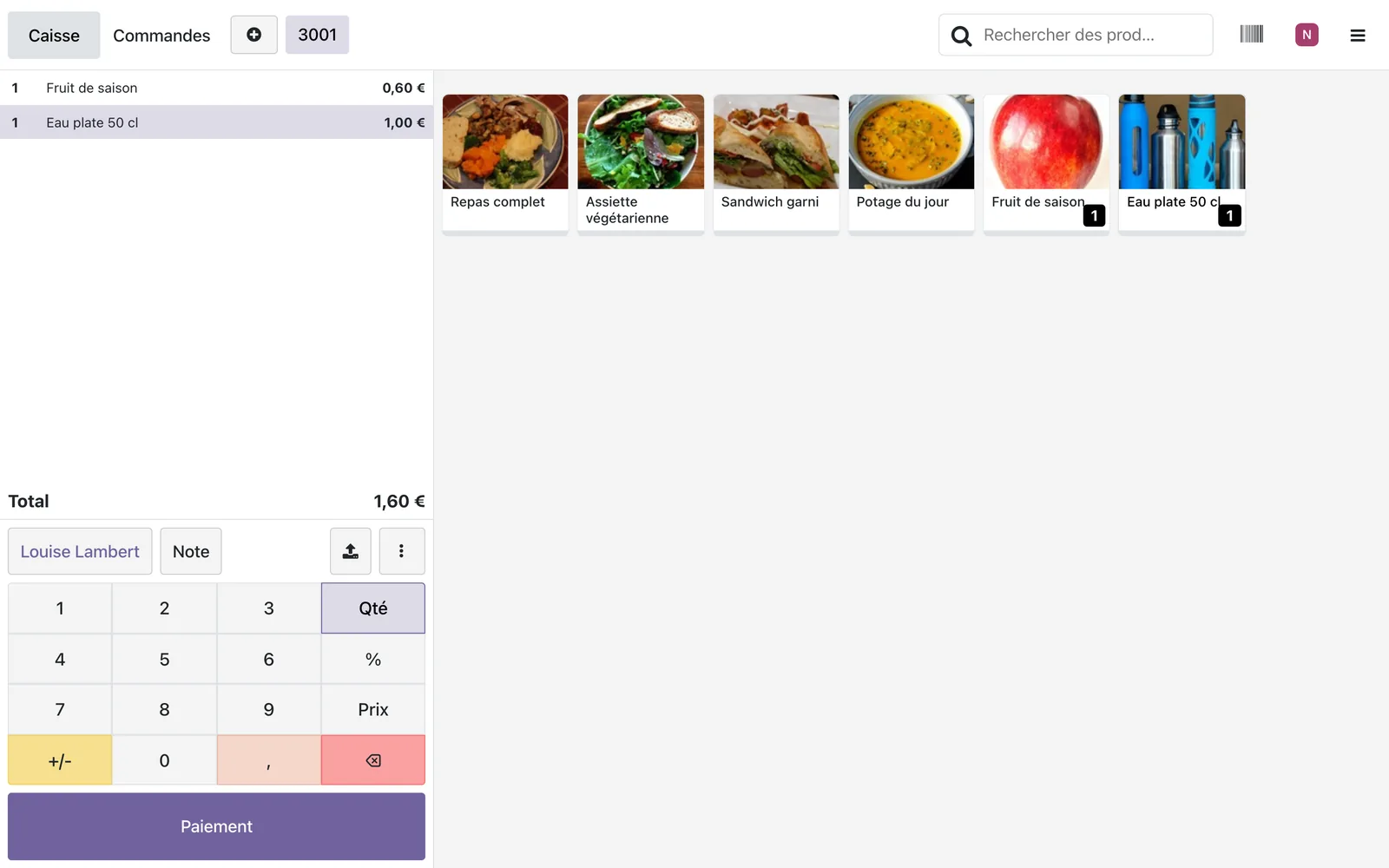
Scanning the card confirms and debits the booked meal
The till shows what the pupil has booked, the wallet is debited, the pupil moves on. A school can also choose to take payment at the till rather than at booking.
- Works on the touch screens or tablets of the canteen
- A pupil can eat in a canteen other than their own
- Staff and outside guests use the same till
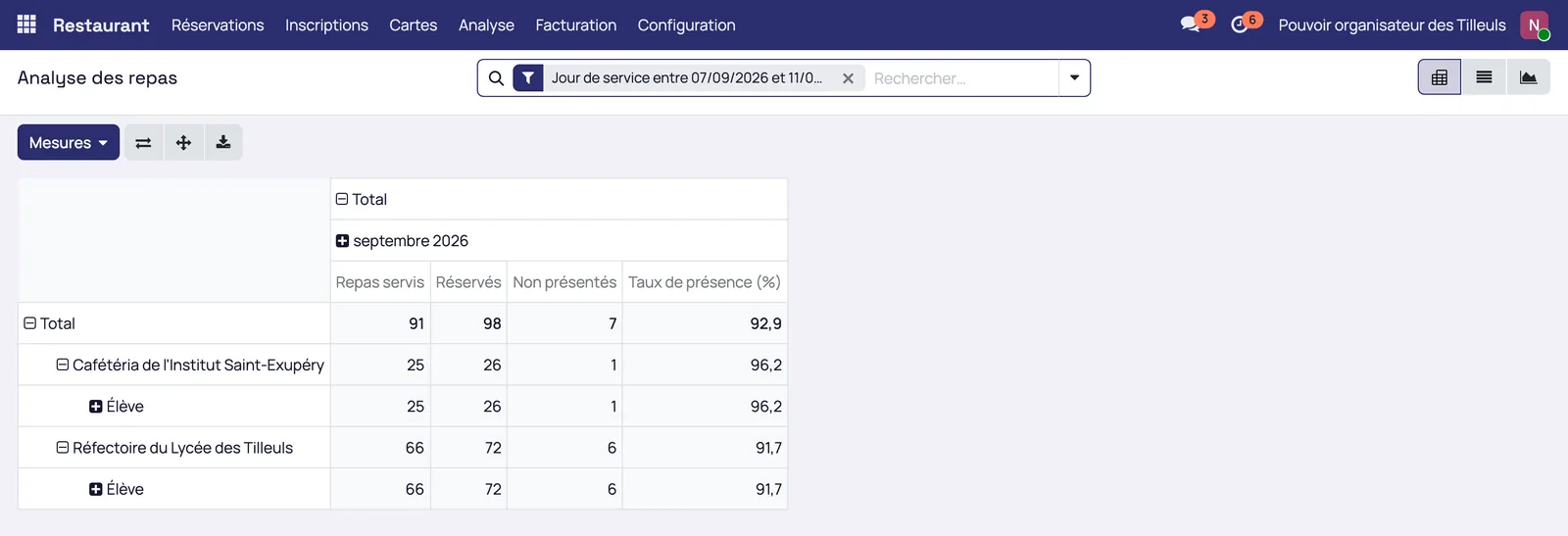
Meals served are tracked by canteen and by diner
Management sees the no-shows on the same day
Management tracks meals by canteen, by day and by type of diner. No-shows are visible on the same day.
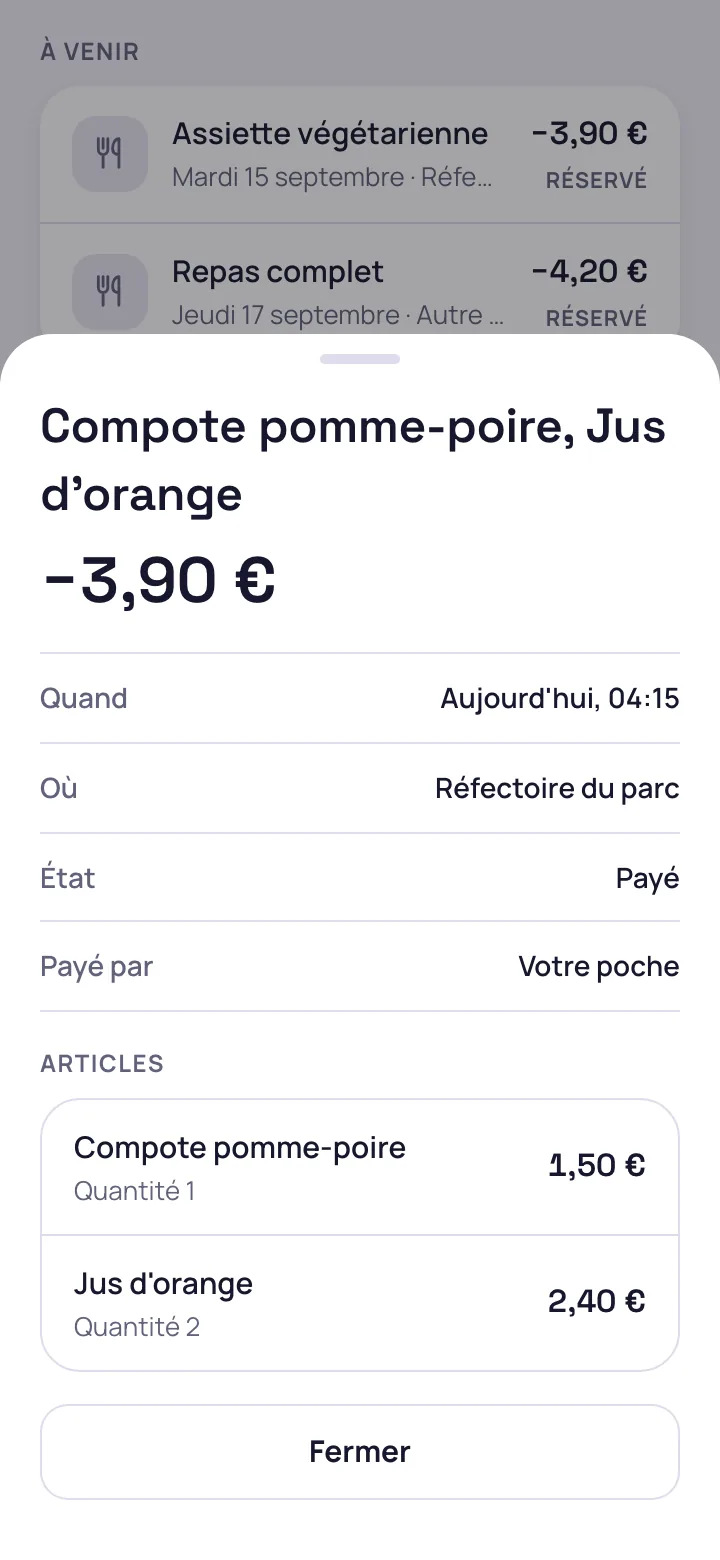
The parent sees what their child has bought
Each till scan appears in the portal activity with the location, the time and the details of the items.
The till runs in the browser of the computers already in place
A badge reader in keyboard emulation mode is enough
The till is a web page that opens in the browser of the canteen's existing touch stations, with no dedicated terminal to buy. The RFID reader plugs into USB and behaves like a keyboard: it identifies the pupil as soon as the badge is presented.
- No proprietary till hardware to buy
- Works on the touch stations or tablets already in use
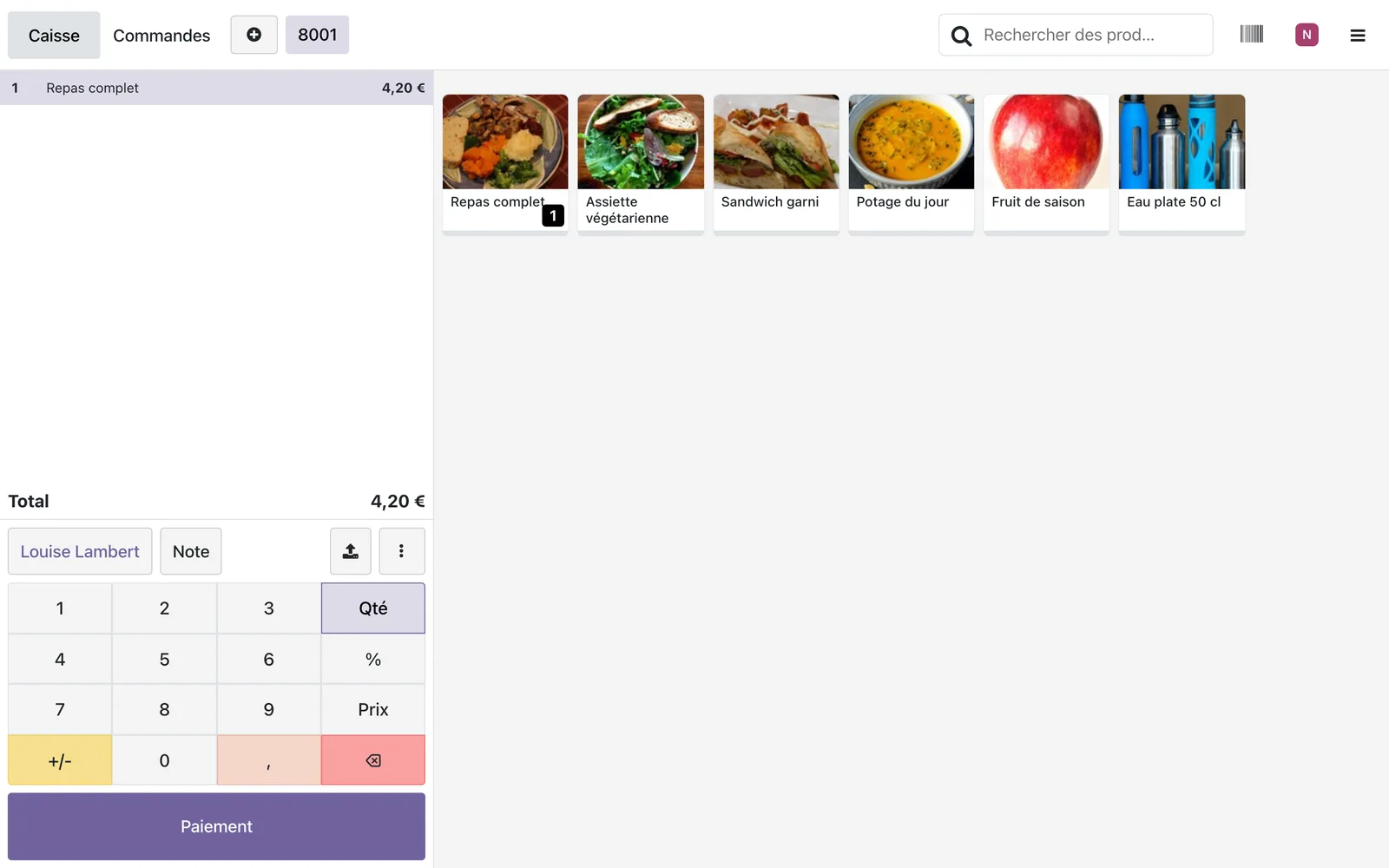
The pupil's wallet is already offered at the right amount
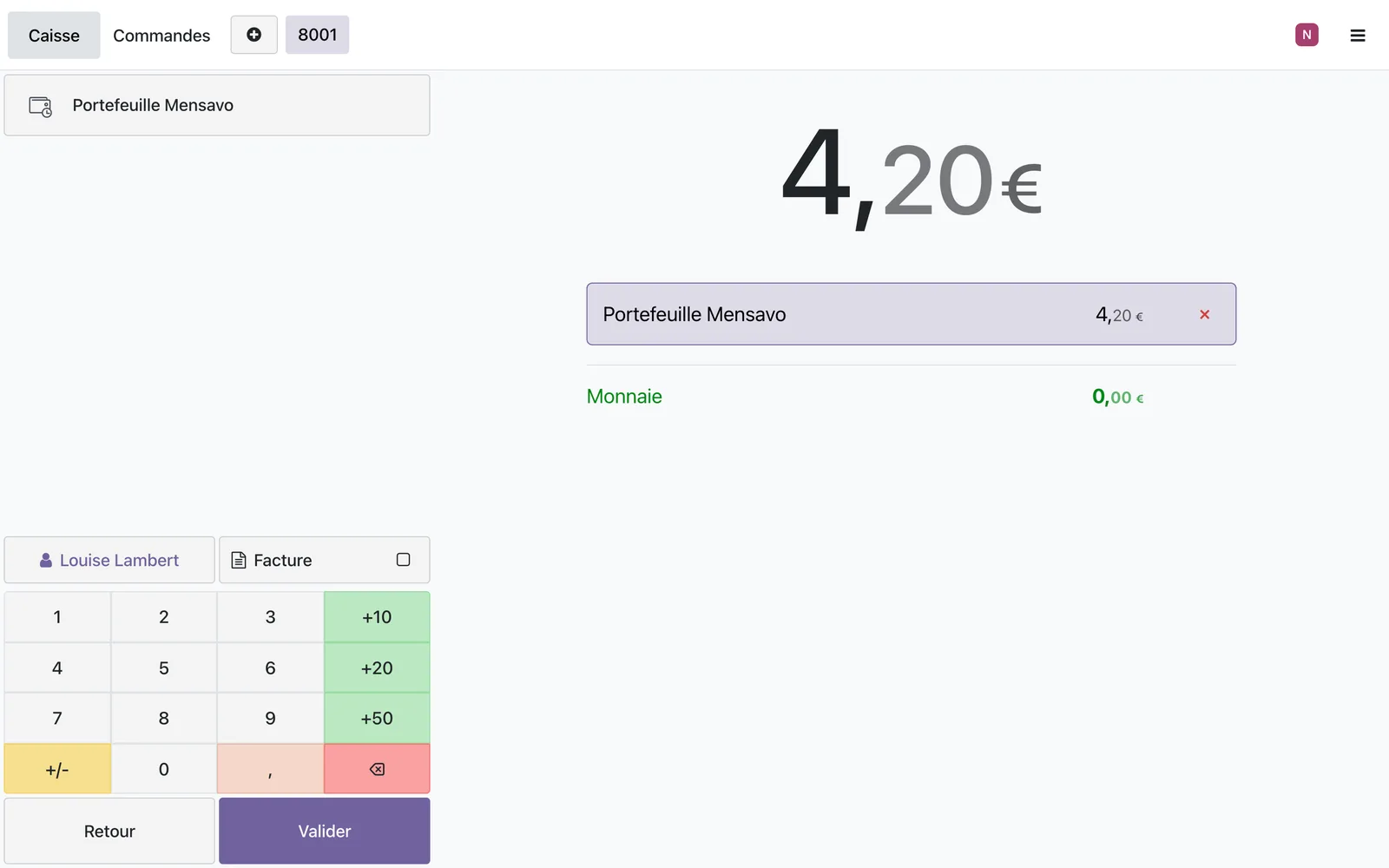
Once the badge is recognised, the Mensavo Wallet payment method is offered, already filled in with the amount due. The cashier confirms and the pupil moves on: one action serves and debits the booked meal.
The second meal and the meal not taken follow rules set by the school
A second meal on the same day is handled according to the rule chosen
A pupil who takes a second meal on the same day, for example after a sports activity, follows the rule the school has set: invoicing at the normal rate, a specific rate, or refusal beyond the first meal.
A booked meal not taken is not invoiced twice
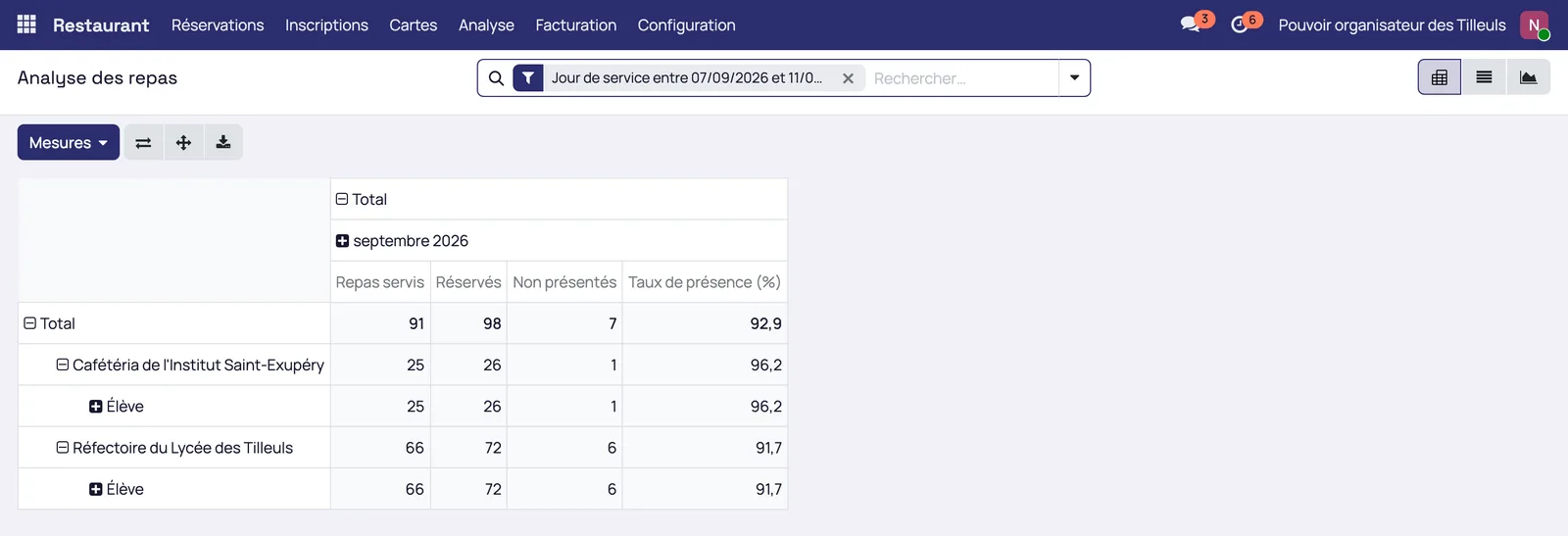
When a pupil does not turn up at the canteen although they had booked, the meal stays marked as a no-show: the kitchen and management see the real attendance rate, with no double invoicing and no re-keying.
Till sales feed the same reporting as bookings
One analysis, whatever the origin of the meal
A meal booked from the portal, entered by the school office or sold directly at the till: each meal feeds the same analysis, by canteen, by day and by type of diner, with no separate export to reconcile.
Request a Mensavo demo
About thirty minutes to see the wallet, the canteen, the invoicing and the families portal on the cases you choose.
Request a demo